
Word to PDF: the revision that avoids broken pages and changed fonts
Check margins, breaks, titles, and fonts before turning a DOCX file into a PDF for clients or applications.
The resume was perfect in the editor, but opened differently on the recruiter's computer. A replaced font moved professional experience to the second page. Exporting to PDF helps to stabilize the presentation, although it is important to check how the conversion was done.
Fix the source before converting
Activate page view in Word and look for isolated titles at the end of a sheet, broken tables and excessive spaces. Don't try to solve everything with blank lines; use margins, styles and pagination controls. These adjustments are more reliable when the text grows or changes computers.
If there are comments, tracked changes, or information that should not appear to the recipient, review these options in the editor itself. The exported PDF must represent the final version, not a draft with internal notes.
Find out what the tool can preserve
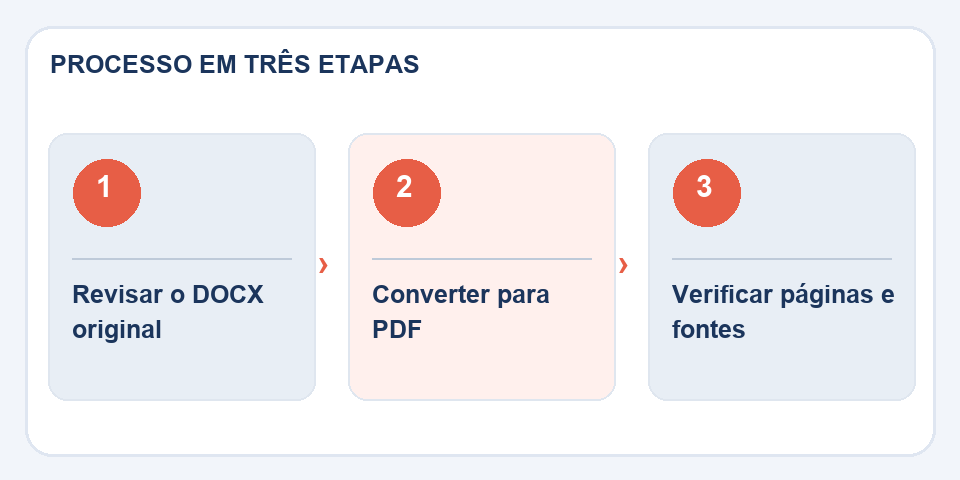
No Word to PDF, simple documents tend to produce more predictable results. Lightweight conversions in the browser can retrieve text and generate pages without fully reproducing headers, columns, floating images, and complex styles. For a demanding corporate layout, compare the output to Word's native export.
This matters in resumes, commercial proposals, academic papers and forms. A visually similar PDF does not mean that all links, fields, or accessibility features have been maintained.
A two-minute conference
Open the generated PDF and count the pages. Check out the first, middle and last page; enlarge passages with symbols and accents. Tables and images deserve special attention. If the document will be printed, also test margins and orientation.
Finally, give it a name that identifies the version:commercial-proposal-2026-10.pdfinforms more thanfinal-document-final.pdf. Keep the DOCX, because the PDF makes distribution easier, but it is no substitute for a well-organized editable font.
The last file is what the recipient will see
A proposal may be impeccable in the editor and have an orphan line after export. Therefore, the final conference must take place in the PDF, preferably on the same type of reader used by the recipient. If there are contact links or buttons that lead to forms, click each one and confirm the destination. A seemingly blue address may not have been exported as a clickable link.
For documents with visual identity, also pay attention to the fonts. Substitutions can change the width of titles, making a sentence break on another line. Open the file on another machine when possible, or use a different reader. If you need to preserve advanced accessibility features, check the export options and reading structure; Correct appearance does not guarantee adequate navigation by assistive technology.
Also read
- Damaged PDF: what to try before giving up on the file
- How to compress PDF without losing quality (2026 guide)
- How to join PDF online for free (without installing anything)
Technical reference: page structure and accessible reading order (W3C).
Questions that often appear
Does the PDF exactly maintain the design of Word?
It depends on the converter and the elements used in DOCX. Advanced layouts can change into simplified conversions.
Can I delete the Word file?
It's best to preserve the DOCX for future revisions; the PDF is the distribution copy.

Fabiano Freitas has a degree in Information Technology Management and writes about technology applied to everyday life, digital tools and productivity. At FileBito, it publishes practical guidance on PDF, images, data and conversions, with attention to privacy, file quality and checking results.