
How to create a PDF form with truly fillable fields
Add text, selection, and list fields to a PDF. Processing in the browser, without registration.
A PDF form with blank lines seems simple until someone tries to fill it out on their cell phone. Interactive fields make this process more predictable.
Add text, selection, and list fields to a PDF. Processing in the browser, without registration. To try it, open How to create a PDF form with truly fillable fields and follow what happens with a real example.
Understand the tool
How to use create pdf form
A fillable form makes it easy to collect responses without each person having to print the file. Here you add text fields, checkboxes, and drop-down lists to an existing PDF while retaining the original pages. Everything is processed in the browser.
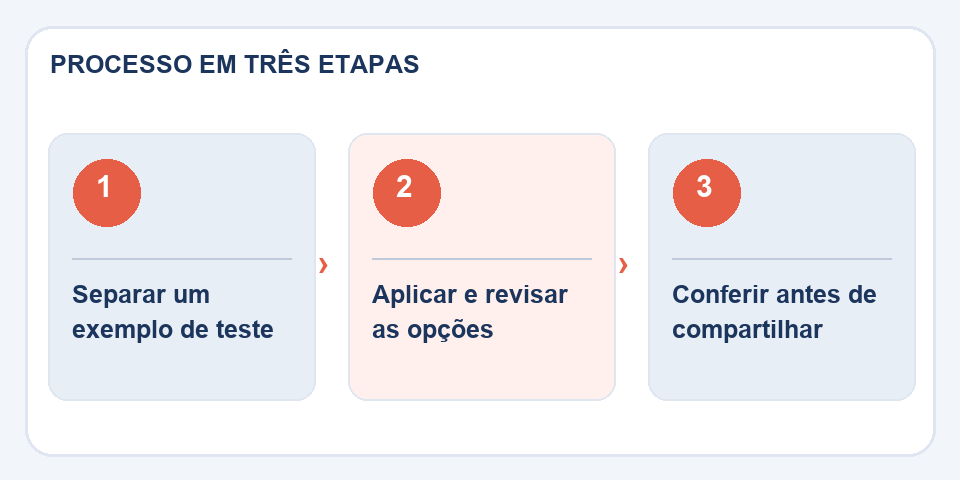
Send the PDF, define a unique name for each field, choose the type and enter the page, distance from the left and top, width and height in millimeters. Add as many fields as needed and save the new PDF. For lists, separate options with commas.
Open the result in a PDF reader and test all fields before distributing it. Position is calculated from the top left corner of the page; Pages with different dimensions may require their own measurements. This feature creates interactive fields, but does not configure digital signatures or automatically send responses.
Before creating many fields, test it with a single text field. Save the PDF and confirm that the box appears on the correct line. With the right measurement, duplicate the logic for the other questions. Clear field names, such as full_name or due_date, help you identify responses later.
A check box works well for independent concordances; a drop-down list saves space when there are multiple sticky answers. If you need two alternatives to be mutually exclusive, review the form in a supported reader: this version does not yet create radio button groups. Save the base PDF to change the position of fields without accumulating versions.
Before sending the PDF
Open the form in a second reader, test tabbing and saving and check if the data persists when reopened.
A careful check starts with the exported file: open the first and last pages, look for cut sections and confirm that the order makes sense. For documents that will be signed or completed, test the fields and preserve an earlier version. Depending on the change, digital signatures may become invalid.
Also read
- Compare PDFs: Find changes before approving a version
- PDF to JPG: when turning a page into an image is worth it
- Text to PDF: Turn notes into an easy-to-share document
Technical reference: organization and numbering of pages in PDF (Adobe).

Fabiano Freitas has a degree in Information Technology Management and writes about technology applied to everyday life, digital tools and productivity. At FileBito, it publishes practical guidance on PDF, images, data and conversions, with attention to privacy, file quality and checking results.