
PDF to Excel: How to Recover a Table Without Blindly Trusting the Columns
Understand the limitations of extracting tables from PDFs and learn how to check values, decimal separators, and totals in XLSX.
The expense table is in a PDF, but you need to add up the amounts per month. Copying and pasting line by line seems time-consuming, so converting to Excel is tempting. The delicate point is that the PDF has the appearance of a table, not necessarily the organization of a spreadsheet.
A visual column is not always a real column
In the PDF, numbers can be positioned at specific points on the page, without there being information saying “this is cell B12”. The converter needs to infer rows and columns. Wide spaces, different fonts, and borderless tables increase the chance of misplacement.
UsePDF to Excelas an extraction step. When opening the generated spreadsheet, check that the titles are on the correct first line and that each number belongs to the expected category. Do not start creating charts before this review.
Critical points in Brazilian archives
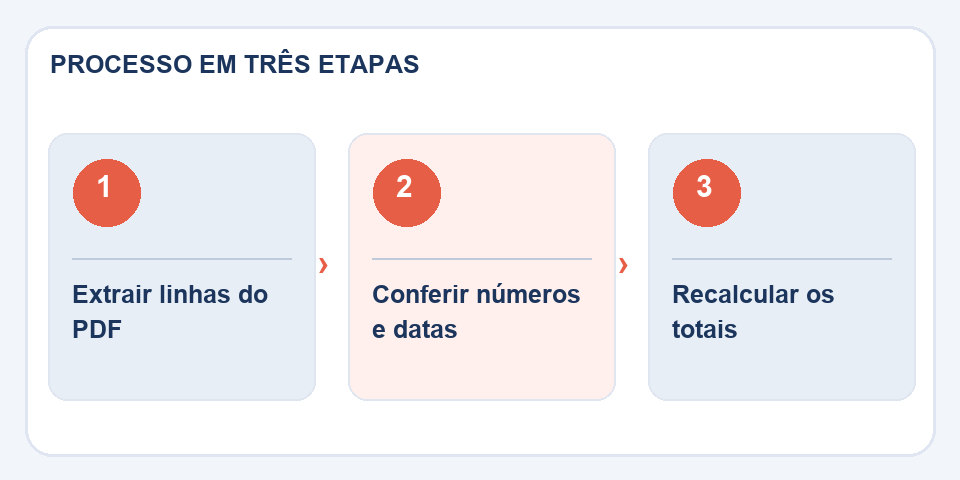
The value1.234,56may be interpreted differently depending on language settings. Dates like03/04/2026are also ambiguous outside the Brazilian standard. Before calculating totals, make sure the spreadsheet recognizes the contents as numbers and dates, not plain text.
Check merged cells, subtotals, and footnotes. Sometimes the converter delivers repeated values because a table has been visually divided into two blocks. Make the sum of a column and compare it with the total printed in the PDF.
When is it best to return to the source
If the report was exported from a system, there may be an option to download CSV or XLSX directly. This output often preserves the data structure much better than reconstructing it from the PDF. Ask for the original spreadsheet before investing time correcting hundreds of lines.
For scanned documents, the situation is even more delicate: OCR will first be required, and any incorrectly recognized number contaminates the calculations. Save the PDF as a reference and record the corrections made to the spreadsheet.
A column error can contaminate the entire analysis
Imagine extracting a twelve-month expense table. The converter places a value in the neighboring column and the calculated total still looks reasonable. This error is more dangerous than a visible failure because it can silently enter the report. Before creating formulas, check the sum per line and column against the total values present in the PDF.
Also note negative numbers represented in parentheses and thousands separators. In some contexts, 1,234.56 corresponds to one thousand two hundred and thirty-four; in others, the interpretation of the signs is different. Customer codes and invoice number must be left as text when leading zeros have meaning. Treat the converted spreadsheet as a structured draft that needs validation, especially if it will be used for payments or decisions.
Also read
- Word to PDF: the revision that avoids broken pages and changed fonts
- Damaged PDF: what to try before giving up on the file
- How to compress PDF without losing quality (2026 guide)
Technical reference: page structure and accessible reading order (W3C).
Questions that often appear
Do the formulas come with the PDF?
No. PDFs typically do not retain a spreadsheet's original formulas.
Can a photographed table become Excel?
It needs OCR before organizing into columns, and the results require thorough checking.

Fabiano Freitas has a degree in Information Technology Management and writes about technology applied to everyday life, digital tools and productivity. At FileBito, it publishes practical guidance on PDF, images, data and conversions, with attention to privacy, file quality and checking results.