
Delete PDF pages without losing the original document
Need to remove blank pages, unnecessary covers, drafts, or confidential pages from a PDF?
By sending only the relevant pages of a long document, it is easy to exclude a sheet that seemed unnecessary but contained a note.
Need to remove blank pages, unnecessary covers, drafts, or confidential pages from a PDF? To try it, open Delete PDF pages without losing the original document and follow what happens with a real example.
Understand the tool
Need to remove blank pages, unnecessary covers, drafts, or confidential pages from a PDF? This tool deletes specific pages in seconds, generating a clean PDF without unwanted content.
Mark the pages you want to delete from the document
When deleting pages from a PDF is necessary
PDFs often contain pages that should not be in the final document: blank pages automatically inserted by the printing system, unnecessary inner covers, draft pages, duplicate footers, or confidential sections that should not be shared.
Deleting pages is more efficient than manually splitting and reassembling the document. With the right tool, you can select exactly which pages to remove, preview the results, and download the adjusted PDF in less than a minute.
When to use — the 4 most common cases
Remove blank pages
PDFs exported from ERP systems or automatically generated often have blank pages between sections.
Confidential content
Remove sections that contain personal, financial, or strategic data before sharing the document externally.
Drafts and notes
Delete review pages, internal comments, or drafts that should not appear in the final version.
Reduce file size
Removing unnecessary pages is an efficient way to reduce PDF size beyond standard compression.
FileBito vs. other tools
Are my files stored on a server?
All processing happens in your browser — not a single byte of your files travels across the internet. You can check this by turning on airplane mode after the page loads.
Can I preview pages before deleting?
The tool displays thumbnails of all pages so you can identify exactly what will be removed.
The tool creates a new file with the remaining pages. Your original document remains intact.
You can select multiple individual pages or ranges and delete everything in a single operation.
FileBito is responsive and works in any modern browser — Chrome, Safari, and Firefox on Android and iOS.
Related tools
Removing blank pages or unnecessary attachments makes a PDF easier to read and send.
Before deleting, check that there are no signatures, notes or numbering dependent on these pages. Keep the original document for reference.
Before sending the PDF
Check the numbering before and after the operation and keep the entire file on file.
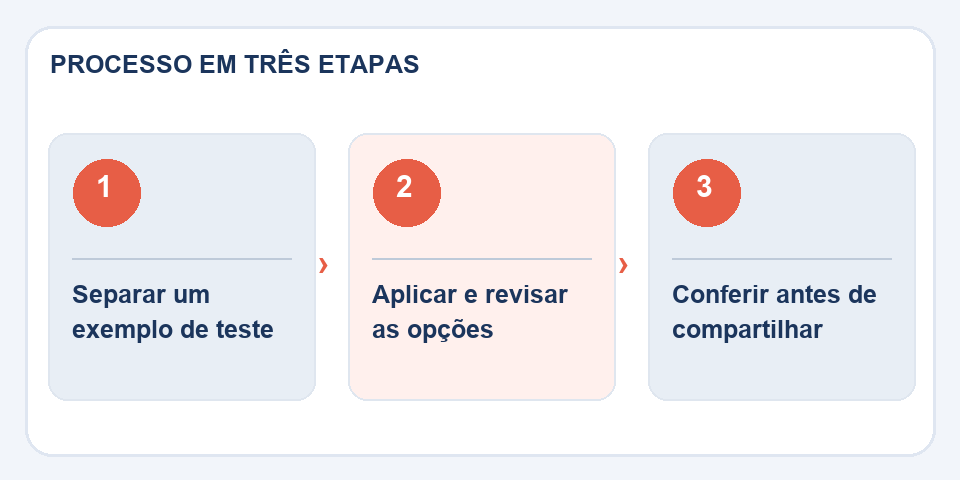
A careful check starts with the exported file: open the first and last pages, look for cut sections and confirm that the order makes sense. For documents that will be signed or completed, test the fields and preserve an earlier version. Depending on the change, digital signatures may become invalid.
Also read
- Edit PDF: what can be corrected without redoing the file
- Scan to PDF: Readable documents in the right order
- How to create a PDF form with truly fillable fields
Technical reference: organization and numbering of pages in PDF (Adobe).

Fabiano Freitas has a degree in Information Technology Management and writes about technology applied to everyday life, digital tools and productivity. At FileBito, it publishes practical guidance on PDF, images, data and conversions, with attention to privacy, file quality and checking results.