
Image filters: adjust without destroying colors and details
Apply filters and adjustments to your images. Control brightness, contrast, saturation, tones and more. Preview in real time before saving.

A filter that makes the photo look nice in the thumbnail can destroy details in the bright areas when the image is enlarged.
Apply filters and adjustments to your images. Control brightness, contrast, saturation, tones and more. Preview in real time before saving. To try it, open Filters on images and follow what happens with a real example.
Understand the tool
Need to adjust brightness, contrast, saturation, or apply stylized filters to a photo? This visual editing tool works directly in the browser — no Photoshop, no apps, with professional results.
Adjust brightness, contrast, saturation and other parameters
What are image filters and when to use them
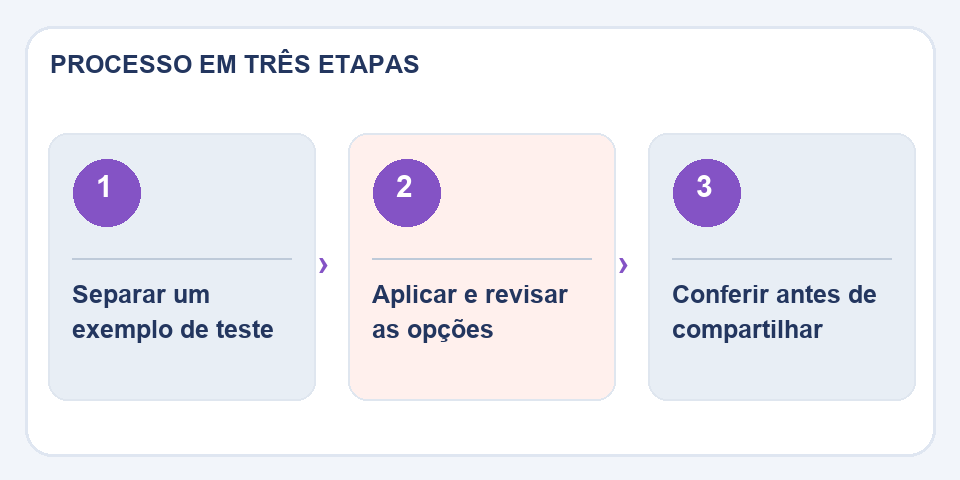
Image filters are adjustments that transform the appearance of a photo without changing its content: brightness to brighten dark photos, contrast to highlight details, saturation for more vivid colors, sharpness for blurry images. Artistic filters like black and white, sepia, or vintage create specific visual styles.
Professional use: photographers adjust exposure of poorly lit photos; designers standardize appearance of product images; Marketers create visual consistency across social media posts. All this without needing paid software.
When to use — the 4 most common cases
Exposure correction
Save under or overexposed photos by adjusting brightness and contrast for a natural result.
Product standardization
Standardize the appearance of e-commerce product photos for visual consistency across the catalog.
Artistic effects
Convert to black and white, sepia, or apply other effects for a specific visual identity.
Social media
Create visual consistency in your posts by always adjusting the same color and saturation parameters.
FileBito vs. other tools
Are my files stored on a server?
All processing happens in your browser — not a single byte of your files travels across the internet. You can check this by turning on airplane mode after the page loads.
Are filters applied in a destructive way?
You can adjust the filters before downloading. The original file is not modified — you only download the edited version.
Until you download it, you can reset the filters to their original values at any time.
Adjustments are made while preserving the original resolution. You choose the output quality before downloading.
FileBito is responsive and works in any modern browser — Chrome, Safari, and Firefox on Android and iOS.
Related tools
Adjusting contrast, brightness and color can restore the readability of a dark photo or bring images closer to the same visual set.
Make small adjustments and see the result in full size. Hard filters can eliminate details in shadows and very bright areas.
How to evaluate the finished image
Look at skin tones, shadows, text, and noise at 100% zoom before exporting.
See the image at final use size and at 100% magnification. Compare highlights, shadows, edges and fine details with the original. When the destination is a web page, also check the file weight and readability on your cell phone; When printing, check the dimensions and sharpness.
Also read
- Convert HEX, RGB and HSL without losing visual identity
- SVG to PNG: Prepare vector icons for apps and networks
- How to copy text from a photo without introducing errors into the document
Technical reference: accessible images and alternative descriptions (W3C).

Fabiano Freitas has a degree in Information Technology Management and writes about technology applied to everyday life, digital tools and productivity. At FileBito, it publishes practical guidance on PDF, images, data and conversions, with attention to privacy, file quality and checking results.