
How to copy text from a photo without introducing errors into the document
A practical method for taking text from photos and screenshots, reviewing characters, and organizing the result.

The meeting agenda was written down on the whiteboard. A photo does the trick for the record, but it doesn't help when you need to turn decisions into an email. Extracting text from the image saves typing, as long as the photograph is legible and proofreading is part of the work.
Before extraction, look at the photo
Crop empty areas, rotate the image if it is tilted, and improve contrast sparingly. Erased letters will not be recovered by a simple brightness adjustment. If there is a reflection from a lamp, the best solution may be to photograph again from another angle.
UseExtract text from imageto get an editable base. Printed text is generally more predictable than irregular handwriting. Tables with arrows, lists in columns and crossed out words may arrive in a different order than the author intended.
Take two readings, with different purposes
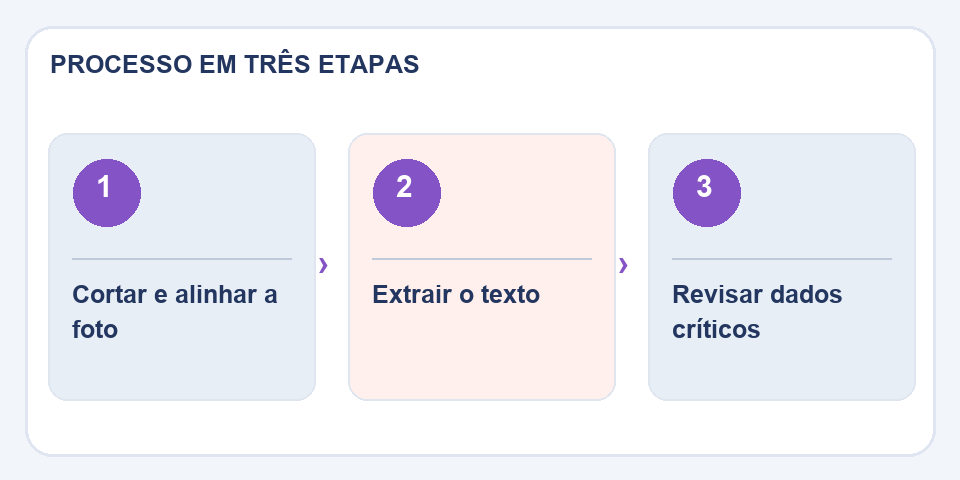
First, check the content: names, telephone numbers, dates, prices, URLs and numbers. In the second, organize the structure with paragraphs and bullets. Separating these tasks prevents you from editing a sentence while missing a wrong number. In minutes, for example, check those responsible and deadlines directly against the photo.
The original image still has value
Save the photo until you finish reviewing. It documents the context of the notes and resolves interpretation doubts. If the extract will be sent to other people, explain when some part is not readable, instead of guessing what was written.
Framed photographs need context
A photo taken at the end of the class contains arrows, circled words and three columns. OCR may recognize words, but not understand that an arrow connects a decision to the person responsible for executing it. When turning the photo into text, reconstruct these relationships with titles and bullets. If there are two possible interpretations, signal doubt rather than choosing silently.
On tickets, receipts and labels, the most important words are often the most difficult: codes, serial numbers and dates written with similar characters. Enlarge the original region and check character by character. Avoid copying extracted text directly to records without proofreading. Automation saves typing, but final confirmation still needs to happen before saving data for use by others.
Also read
- Compare texts: find discrete changes between two versions
- PNG, JPG and WebP: choose the right format for each image
- Image upscale: when enlarging helps and when it creates false details
Technical reference: accessible images and alternative descriptions (W3C).

Fabiano Freitas has a degree in Information Technology Management and writes about technology applied to everyday life, digital tools and productivity. At FileBito, it publishes practical guidance on PDF, images, data and conversions, with attention to privacy, file quality and checking results.