
HTML to PDF: turn a page into a document without losing the essentials
How to save an HTML page to PDF with attention to links, pagination, margins and elements that do not appear in print.
A small company creates a budget in HTML because it is easy to change products and values. The client, however, needs a copy that they can archive. Converting the page to PDF solves most of the problem, but the print version deserves its own look.
The page does not end where the screen ends
HTML is a continuous flow, while PDF divides content into sheets. Long tables can go through a break, images can fall on their own onto the next page and navigation buttons end up printed unnecessarily. Before usingHTML to PDF, open print preview and see which elements are actually useful.
If the HTML uses specific styles for printing, check whether the tool interprets them. Simplified converters may not exactly reproduce every CSS property or external resource. The final output depends on both the converter implementation and the quality of the original HTML.
Links and sources need review
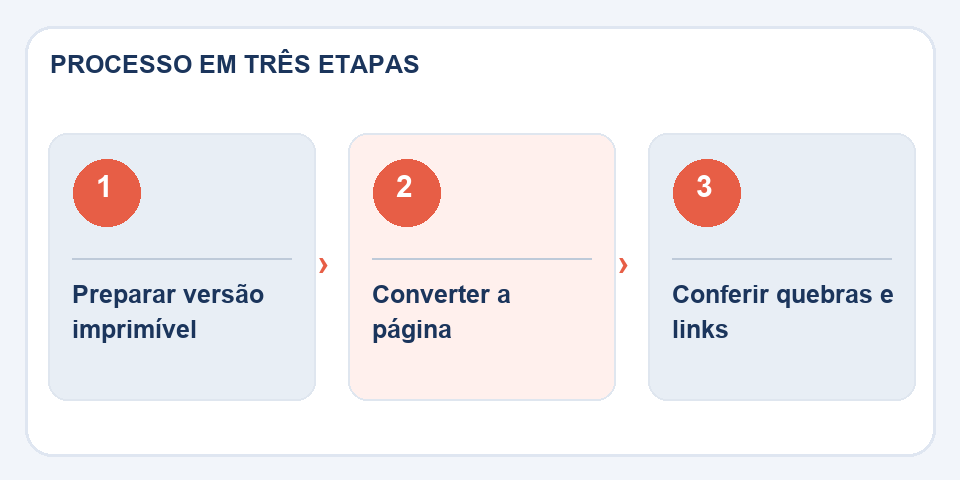
Confirm that important URLs are still accessible in the generated PDF. Fonts loaded from the internet can be replaced when the converter works offline, changing breaks and column widths. Prefer simple typography and layouts that tolerate variations.
Security and privacy when sending
If the page displays customer data, remove administrative menus, session information and excerpts that do not belong to the document. Generate a test copy and review the first, last, and table pages. A good PDF of a web page doesn't need to load the entire interface: it needs to keep the right record, without noise.
Think about breaks before generating the file
A web page can display a product card, a price list and a subscription in a continuous sequence. On paper, this signature may appear alone on the second sheet, far from the values it intends to confirm. When you control HTML, use appropriate print styles to keep related blocks close to each other and hide purely interactive elements such as menus and buttons.
Remotely loaded fonts, images hosted off-site, and scripts may behave differently during conversion. If the content is important, prefer that the main data is already present in the HTML, without depending on an action that only happens after clicking. Review tables, values, and dates in the final PDF, because a visually beautiful page may still have a line cut at the break.
Also read
- Word to PDF: the revision that avoids broken pages and changed fonts
- Sideways PDF pages: how to rotate without redoing the document
- How to extract pages from a PDF without uploading the entire document
Technical reference: print and pagination styles for the web (MDN).

Fabiano Freitas has a degree in Information Technology Management and writes about technology applied to everyday life, digital tools and productivity. At FileBito, it publishes practical guidance on PDF, images, data and conversions, with attention to privacy, file quality and checking results.