
PowerPoint to PDF: how to share slides without depending on the program
Prepare a PPTX presentation to read in PDF and learn which animations, fonts and graphics deserve attention.
A client requested the presentation via email, but doesn't want to install a program just to view the slides. PDF is a good option for reading and archiving: each slide appears as a page. The care is in the elements that depend on the original format to function.
A static slide needs to explain itself
Animations can build an explanation in stages during the live presentation. When exporting to PDF, this movement disappears. If an arrow only appears after a click, check whether the final information will be visible. The same goes for embedded videos, transitions, and interactions.
In meetings, the presenter visually completes the content with his or her own speech. The reader of a PDF will not have this context. Add clear captions, titles that identify the subject and, when it makes sense, a conclusion page.
The suitable converter depends on the complexity
O PowerPoint to PDFFileBito works with a simplified reconstruction of slide texts and images in the browser. Elements such as complex shapes, themes, editable graphics and special fonts may change. For corporate presentations with strict branding, use the editor's native export and compare the results.
Don't just check the cover. View the slides with lots of objects, diagrams and cut-out photographs. If the elements overlap, a small change in positioning can hide the number that supports the conclusion.
How to check before sending
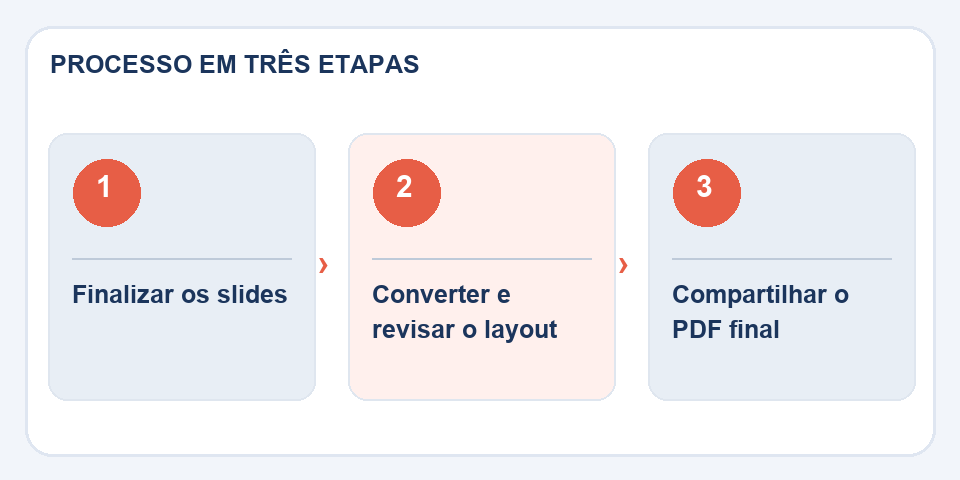
Open the PDF in full screen and advance one page at a time. Check the order, margins, contrast and legibility of the subtitles. Next, look at the file size: presentations with high-resolution photographs can generate large attachments.
Save the editable PPTX for future changes and use the PDF as a reference version. This way, no one needs to edit a screenshot to correct a date for the next meeting.
Animation does not become a printed argument
A presentation may rely on elements appearing in sequence to explain a graph. When transforming it into a PDF, each slide normally becomes a static page, and intermediate stages of the animation may no longer be seen. If understanding depends on this sequence, create explicit versions of the slide or add explanations before exporting.
Presenter notes, internal comments, and data associated with charts deserve review for another reason: what's visible in the final file may not match what you envisioned distributing. Confirm that the PDF contains only slides intended for the public. For presentations with external links, test them after conversion. Finally, view the file on a small screen: readable text on the screen during the lecture can be cramped when the material is sent by message.
Also read
- PDF to PowerPoint: how to reuse pages in a presentation
- Word to PDF: the revision that avoids broken pages and changed fonts
- Heavy PDF to send by email: what really makes the file smaller
Technical reference: page structure and accessible reading order (W3C).
Questions that often appear
Do animations appear in the PDF?
Not like in PowerPoint; PDF is typically a sequence of static pages.
Does the presentation keep all the graphics?
Support depends on the converter. Complex elements need to be checked against the original PPTX.

Fabiano Freitas has a degree in Information Technology Management and writes about technology applied to everyday life, digital tools and productivity. At FileBito, it publishes practical guidance on PDF, images, data and conversions, with attention to privacy, file quality and checking results.